Online Exam Invigilation, Built Into the Capytech LMS
Capytech Invigilate checks who is sitting the exam, watches the camera and the entire screen from the first question to the last, and saves a picture of every moment worth a look. Your invigilators can warn, pause or end an attempt live, and a person makes every decision.
AI flags, a person decides. Nothing to install for students.
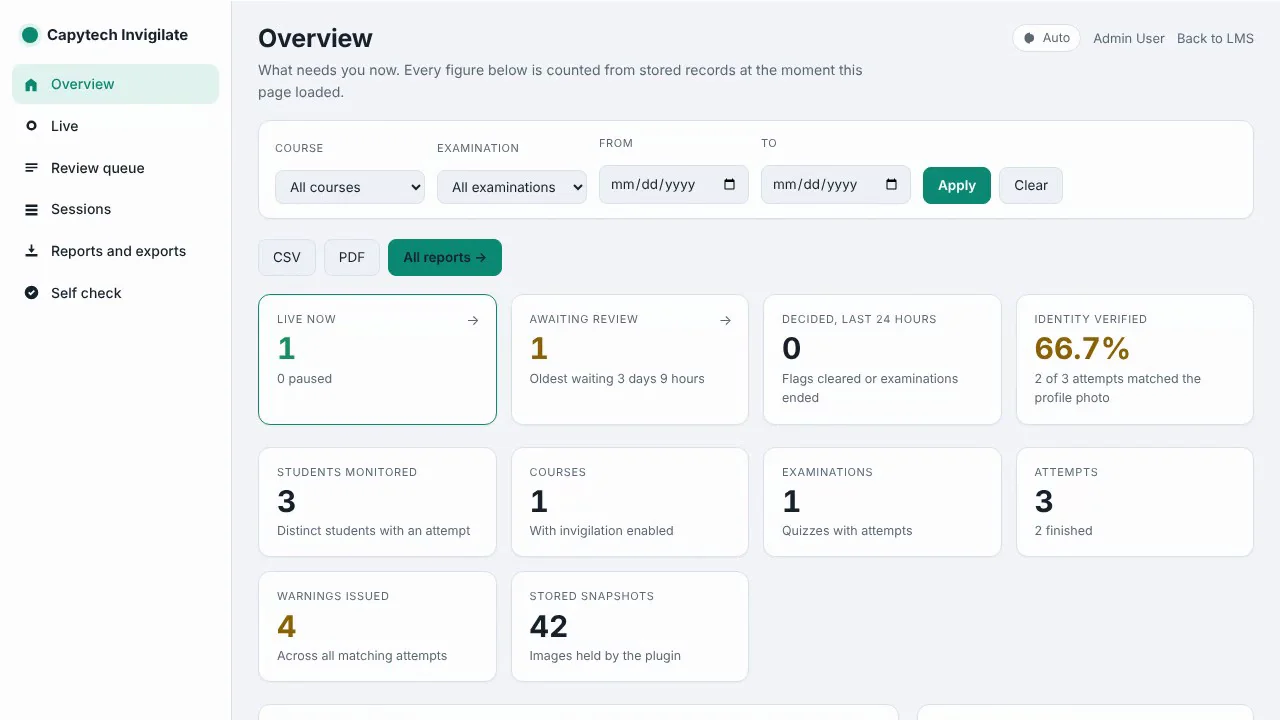
- 13detections, from looking away to a second person, each saved with a picture
- 1live screen for invigilators, with warn, pause, resume and end at hand
- 7reports as CSV or PDF, plus an evidence pack with every picture
- 0decisions made by AI. Flags are pointers, and a person decides
Capytech Invigilate in Action

Read the transcript
This is Capytech Invigilate.
Remote exam invigilation, built into your learning platform.
AI flags the moments that matter, and a person makes every decision.
When exams move online, you need evidence you can stand behind.
So we record the camera, the microphone and the entire screen, for the whole exam.
46 automated checks watch for anything unusual.
Candidates check their camera, show their ID and their room, and share their screen.
Then the exam runs as normal, and the recording never stops.
Reasonable adjustments are set per candidate.
Your invigilators watch every candidate live.
They can send a message, pause an exam, or approve a return from a supervised break.
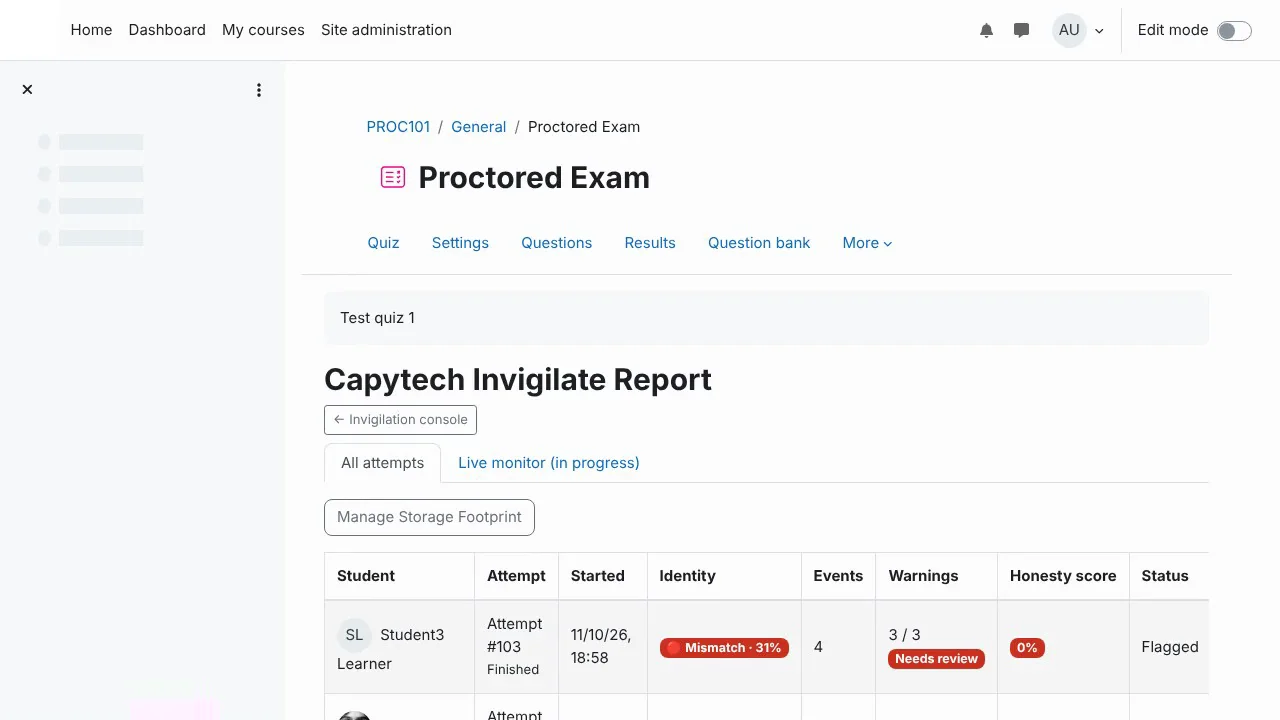
Afterwards, reviewers see everything on one screen.
A plain English summary, camera and screen in sync, and every flag on a timeline.
They record the decision, and download a PDF report, or a full evidence pack.
It also catches AI tools and automation.
It can use a phone as a second camera, and hold a certificate until the exam is cleared.
Capytech Invigilate. Fair, secure online exams, hosted in the UK.
From Camera Check to Final Decision
Four stages, all inside the Capytech LMS. Choose a stage to see what happens.
About a minute of setup, then the exam as usual
- The student opens the exam and the page says it is invigilated and what is needed. There is nothing to install.
- They allow the camera and agree to monitoring before anything is recorded.
- Identity check: the live camera image is matched against their profile photo in the LMS, then they turn their head left, right and up on request. A photo or video held up to the camera does not pass.
- The questions stay blurred until the camera and the entire screen are both shared. One click, choose Entire Screen, and the exam opens.
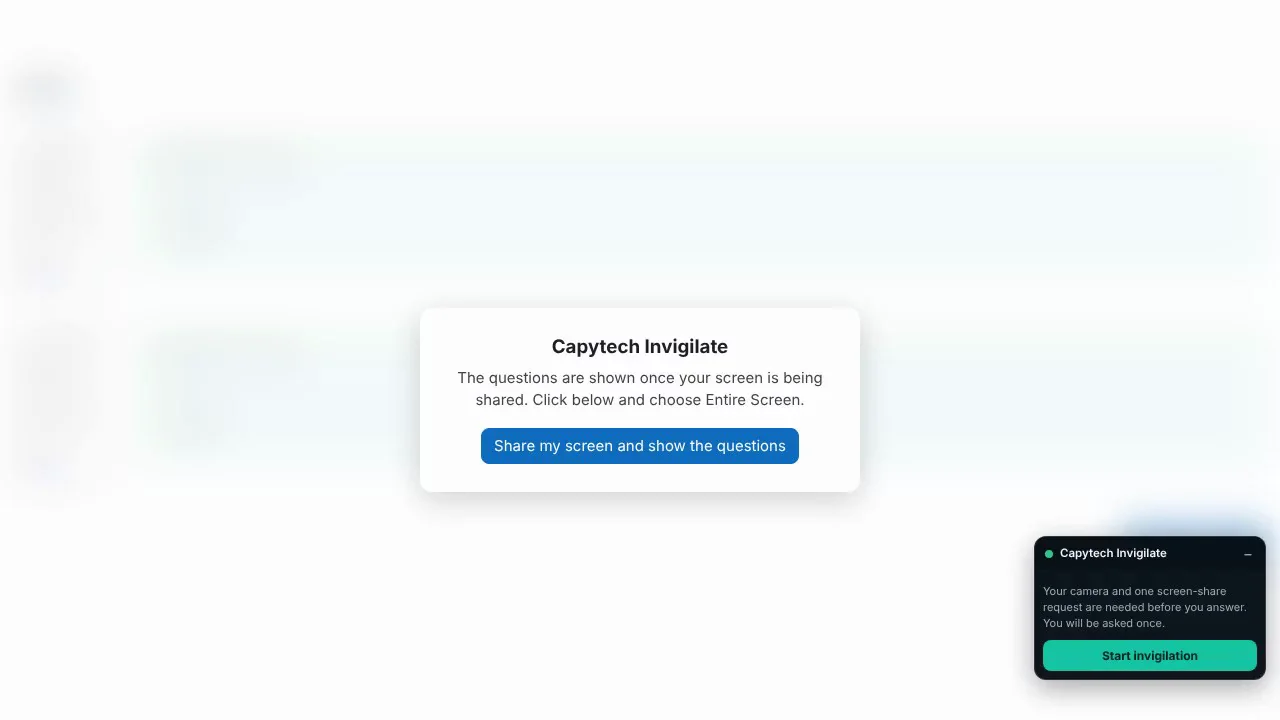
The camera and the whole screen are watched to the end
- A small camera panel stays in the corner, showing the student their own status. It can be moved or collapsed.
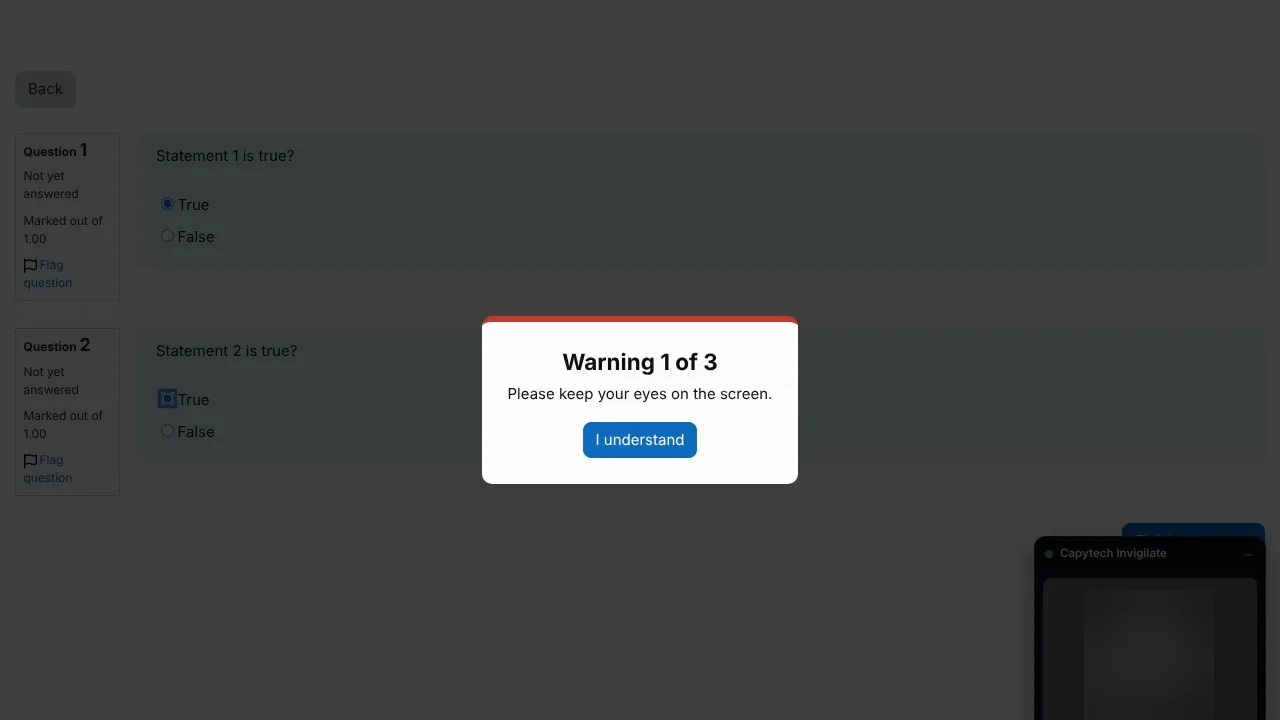
- 13 detections watch for things like looking away, a second person, talking or switching windows. Each one is saved with a picture and the time.
- If the screen share stops, the questions disappear again. Reloading the page does not get round it.
- Warnings from the invigilator appear on screen and must be acknowledged before the student carries on.
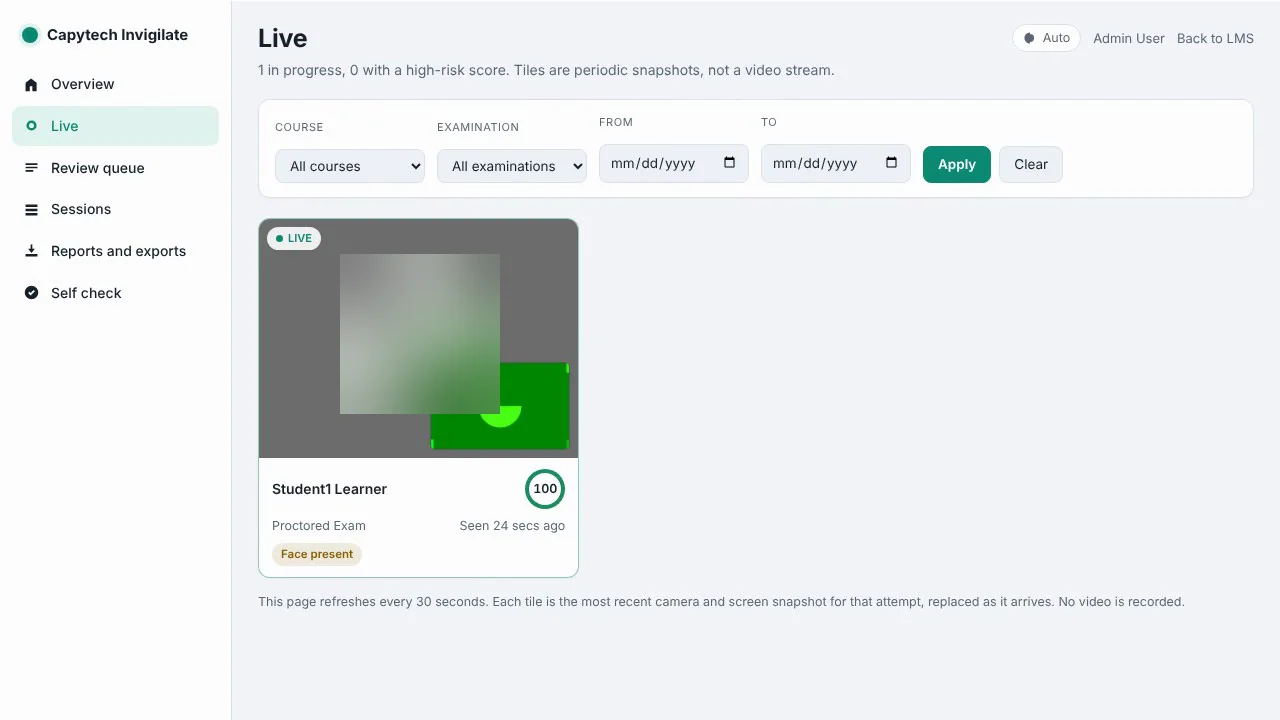
Every running attempt on one screen
- The Live view shows every attempt in progress with its status, honesty score and the latest picture, refreshed automatically.
- Warn sends a message the student must acknowledge. After a set number of warnings, the exam pauses automatically.
- Pause freezes the student's screen and the exam clock until you resume, so no time is lost.
- End session submits the attempt. Every action asks for a reason and is logged with the invigilator's name.
Every flagged moment, with its picture
- The review queue lists flagged attempts first.
- Open an attempt to see its timeline: every detection with its picture, every warning, the identity checks and every staff action.
- Clear a flag or add a note where a detection was innocent. The honesty score only puts attempts in order; a person decides.
- Each student has one sitting. An invigilator can grant one retake, and the original attempt and its evidence are kept.
AI Flags the Moment. You Make the Call.
Review an example attempt the way a Capytech Invigilate reviewer does. Choose each flag on the timeline, keep or clear it, then decide what happens.
Every Detection, in Plain English
Each detection is something a reviewer can see in a picture, so it can be shown to the student or an appeal panel. Filter by type, or search for something specific, such as face or screen.
Showing 13 of 13 detections
- Camera
No face
The student leaves the camera view for longer than the set time.
Saved with a camera picture - Camera
Looking away
The student looks away from the screen for longer than the set time.
Saved with a camera picture - Camera
Looking to the side
The student looks to the side for longer than the set time.
Saved with a camera picture - Camera
Talking
Repeated mouth movement over a short window, suggesting conversation. Seen on camera; no audio is captured.
Saved with a camera picture - Camera
Camera lost
The camera is covered, unplugged or blocked.
Saved with a camera picture - People
Second person
A second face appears in the camera.
Saved with a camera picture - People
Person in the background
Someone is seen behind the student.
Saved with a camera picture - People
Several faces
More than one face is in view at once.
Saved with a camera picture - Identity
Identity mismatch
The face on camera no longer matches the verified student. Identity is re-checked during the exam.
Saved with a camera picture - Identity
Identity not verified
The identity check before the exam did not confirm the student.
Saved with a camera picture - Identity
Pre-exam check
The setup check itself is recorded: camera, agreement, identity and screen share.
Saved with a camera picture - Screen
Window or tab switch
The student switches to another window or tab.
Saved with a camera and a screen picture - Screen
Screen share lost
The screen share stops. The questions are hidden again until it is restarted.
Saved with a camera and a screen picture
No detections match. Try another word, such as face, camera or screen.
Detection is a prompt, not a verdict: lighting, glasses and camera quality affect confidence, so every flag carries its picture and can be cleared. You set how long a student may look away before it counts.
Every Moment That Matters, Without the Footage
The camera and the screen are watched for the whole exam. What is kept is a picture of each flagged moment, with the time and the reason, rather than hours of video and audio.
Light on storage
Recording video for a whole exam takes roughly 2 GB per student per hour, so a class of 40 sitting a two hour exam is around 160 GB. Pictures of the flagged moments take a few hundred kilobytes per attempt.
Reliable with a whole class online
Forty students uploading video from home for two hours slows the exam and loses evidence when an upload fails. Pictures are tiny and arrive in a fraction of a second.
Evidence a reviewer can use
Nobody wants to watch two hours of video to find three moments. Reviewers see exactly those moments, timed, with the reason.
Proportionate for students
Homes, families and voices are not recorded for hours and kept. Only the moments that need a decision are kept, for as long as you set.
Built for Exams That Matter
Questions stay hidden
Nothing can be answered until the camera and the entire screen are both live, and the questions disappear again if sharing stops.
Identity you can trust
Matched against the student's profile photo already in the LMS, with a head movement check, so a held-up photo or video is refused.
Live control
Warn, pause, resume or end any attempt from one screen. The exam clock stops while paused, and every action is logged with a reason.
One attempt, retakes by authority
Each student gets one sitting. An invigilator can grant exactly one more, and it can be withdrawn.
Reports and an evidence pack
Seven reports as CSV or PDF, plus one ZIP with every report and every picture. Administrators download; instructors can view.
Set how strict it is
How closely the face must match, how long a student may look away, how many warnings before an automatic pause, and the wording of each warning.
Evidence You Can Stand Behind
When a result is challenged, every flagged moment is there with its picture, its time and every action staff took.
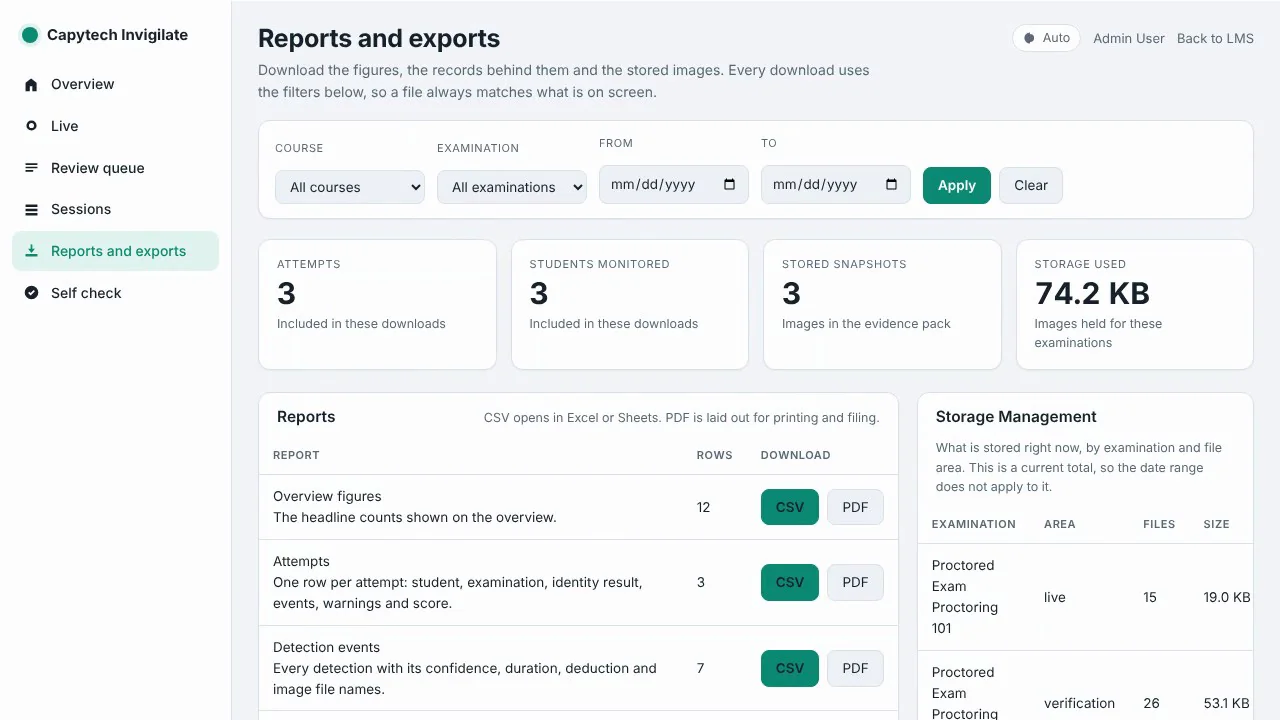
- Seven reports: overview figures, attempts, detections, warnings, identity checks, the audit log and storage use, each as CSV for Excel or as PDF.
- Evidence pack: one ZIP with every report and every picture for the exams and dates you choose.
- A full audit trail: every warning, pause and retake, with the reason and the name of the person who did it.
- Controlled access: administrators download, instructors can view.
Secure for You, Fair for Them
Remote exams only work if students trust them. Capytech Invigilate is built so honest students are not penalised for ordinary things.
Told before anything is recorded
The exam page explains what is monitored, and students agree before monitoring starts.
No microphone
No audio is captured. Talking is spotted on camera and saved as a picture a person can judge, so a television in the next room does not raise a flag.
A person makes every decision
Flags are prompts, not verdicts. Staff can clear any flag and add notes, and the honesty score only orders the review queue.
Extra time still works
The LMS's own per-student settings, such as extra time, apply as normal, and invigilators can pause a student with the clock stopped.
Your Students' Data Stays in Your LMS
Stays in your LMS
It runs inside the LMS with no outside service, so nothing leaves the server. On the Capytech LMS, that means hosting in the UK.
Pictures, not recordings
No continuous video and no audio. Only the flagged moments and one rolling live picture per attempt are kept.
Kept only as long as you set
Pictures are deleted automatically after the period you choose, set separately for cleared and for flagged attempts. A storage page shows exactly what is held.
Controlled access
Only administrators can download reports and evidence packs. Instructors can view, and every staff action is logged with a name.
For Any Exam Where the Result Matters
Certification and licence exams
Confirm the right person sat the exam, and keep the pictures and the audit trail to show an auditor or regulator.
Compliance and competence checks
Run the end of course assessments your staff must pass, without booking rooms or invigilators on site.
Training providers and academies
Offer remote assessment to learners anywhere, with live control and a report for every attempt.
Awarding and professional bodies
Handle appeals with a timeline of every flagged moment, its picture and every action staff took.
Online Exam Invigilation: Common Questions
How does online exam invigilation work?
The student opens the exam, allows the camera, agrees to monitoring and passes a short identity check against their LMS profile photo. They share their entire screen and the questions appear. The camera and screen are watched for the whole exam, flagged moments are saved with a picture, invigilators can warn, pause or end an attempt live, and afterwards a person reviews every flag.
Does the AI decide whether a student cheated?
No. The detections flag moments that may need a look and save a picture of each one. A member of staff reviews them, clears any that were innocent and decides what happens. The honesty score only puts the review queue in order.
Does it record video or audio?
No. The camera and the screen are watched for the whole exam, but only the flagged moments are saved as pictures, plus one rolling live picture per attempt. There is no microphone and no audio. This keeps storage small, keeps the exam fast for a whole class online at once, and is easier to justify under data protection rules.
Can it stop students using ChatGPT or other AI tools?
It makes it hard. The student must share their entire screen, switching to another window or tab is detected and saved with a picture of the screen, and if the share stops the questions are hidden. It does not look inside the browser for particular tools, so a reviewer judges each flagged moment from its pictures.
What do students need?
A laptop or desktop with a webcam, a current version of Chrome, Edge or Firefox, and a profile photo in the LMS that shows their face. Exams cannot be sat on a phone or tablet. There is nothing to install.
Where is the data kept, and for how long?
Everything stays on the LMS server; there is no outside service. Pictures are deleted automatically after the period you set, separately for cleared and flagged attempts, and the storage page shows exactly what is held.
Does it work with our learning platform?
Capytech Invigilate is built into the Capytech LMS. Switching it on is one setting on the exam. If your exams run somewhere else today, talk to us about moving them across.
See Capytech Invigilate on Your Own Exams
We will walk you through a live exam, the invigilation console and a full review, and talk through how it would work for your students.
No charge, no obligation.